The Setup Matters More Than You Think
You’ve bought your domain, set up hosting, and installed WordPress. Now what?
This is where most beginners either freeze up or go in the completely wrong direction — installing 20 plugins, picking a flashy theme, and wondering why their site loads in 8 seconds and ranks nowhere.
A good WordPress setup isn’t about having the most features. It’s about having the right ones, configured correctly. That’s what this guide covers.
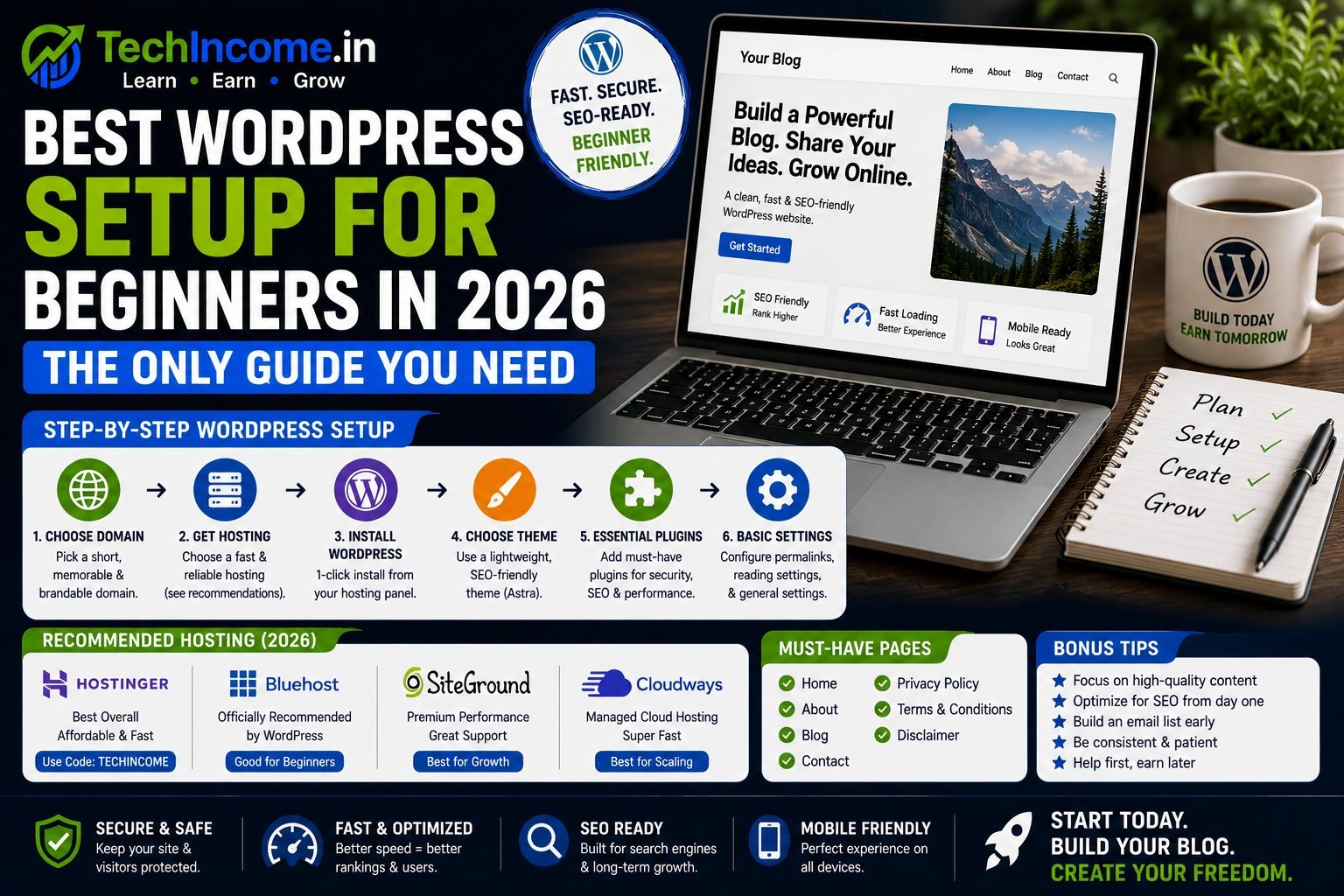
Step 1: Get the Basics Right Immediately After Installation
Before you touch themes or plugins, go to Settings and sort out the fundamentals:
General Settings:
- Set your Site Title and Tagline — make these clear and relevant to your niche
- Set your Timezone to your actual location (this matters for scheduling posts)
Permalink Settings — Don’t Skip This: Go to Settings → Permalinks and select Post Name.
This changes your URLs from something like yoursite.com/?p=123 to yoursite.com/your-post-title. That’s cleaner, more readable, and better for SEO. Set this before you publish anything — changing it later causes broken links.
Step 2: Pick a Fast, Lightweight Theme
Your theme is the foundation of your site’s speed and user experience. Choose wrong here and you’ll be fighting slow load times for years.
What to use: Kadence
Kadence is lightweight, genuinely fast, free to start, and doesn’t come bloated with features you’ll never use. It’s mobile-friendly out of the box and customizable without needing to write code.
What to avoid: Multipurpose themes with built-in page builders, sliders, and animations. They look impressive in demos and slow down your actual site by 2–4 seconds. Speed directly affects your Google rankings — this is not a small trade-off.
The rule is simple: if the theme’s demo needs 15 screenshots to show everything it does, it’s too heavy for a beginner blog.
Step 3: Install Only the Plugins You Actually Need
This is the biggest mistake beginners make. WordPress has 60,000+ plugins, and it’s tempting to install one for everything. Don’t.
Every plugin adds weight, potential conflicts, and security vulnerabilities. Keep your total at 5–8 plugins, maximum.
Non-negotiable:
Rank Math — for SEO. It handles your sitemap, meta titles, schema markup, and on-page SEO guidance. Free version covers everything you need as a beginner.
Optional but useful:
- A caching plugin (like LiteSpeed Cache or WP Fastest Cache) for speed
- A security plugin (like Wordfence or Solid Security) for basic protection
That’s genuinely all you need to start. Everything else can wait until you’ve published 20+ articles and understand what you actually need.
Step 4: Set Up Rank Math Properly
Once Rank Math is installed, run through its setup wizard. The key things to configure:
- Website type: Set it to Blog
- Sitemap: Enable it — this tells Google what pages exist on your site
- Schema: Set the basic schema type (Person or Organization)
For every post you publish, Rank Math will prompt you to fill in:
- Focus keyword — the main keyword the article targets
- Meta description — the 155-character summary that shows in Google search results
- SEO title — usually auto-populated, but worth reviewing
Make sure your focus keyword appears in the title, in the first paragraph, and naturally throughout the article. Don’t stuff it — Google is smarter than that, and it makes your writing worse.
Step 5: Create These Pages Before You Publish Anything
These aren’t optional. If you ever want to apply for Google AdSense, an ad network, or any affiliate program, you’ll need:
- About — who you are and what the site is about
- Contact — a way for readers and brands to reach you
- Privacy Policy — required by law in most countries, and required by AdSense
- Disclaimer — especially important if you’ll be publishing affiliate links
You don’t need fancy designs for these. Clear, simple, honest text is enough.
Step 6: Clean Up the Default Mess
Fresh WordPress installations come with junk you don’t need:
- Delete the default “Hello World” post
- Delete the default “Sample Page” (replace it with your actual About page)
- Delete any pre-installed themes you’re not using (except the one active theme — keep one backup theme)
- Remove any plugins that came pre-installed that you didn’t choose
A clean dashboard is easier to manage and slightly faster to load.
Step 7: Set Up Your Site Structure
Categories: Create 3–5 broad categories that cover your main topics. For a blogging + freelancing site, that might be:
- Blogging
- Freelancing
- Digital Products
Don’t create 15 categories on day one. You can always add more as your content grows. Too many categories with 1–2 posts each looks thin to Google.
Navigation Menu: Keep it simple — Home, Blog, About, Contact. That’s it for now. Complex menus confuse readers and don’t add SEO value at this stage.
Step 8: Cover the Speed Basics
Site speed directly affects your rankings and bounce rate. You don’t need to go deep on this as a beginner, but do the basics:
- Use your lightweight theme (done in Step 2)
- Install and configure your caching plugin — most have a one-click “recommended settings” option
- Compress images before uploading them. Use a free tool like Squoosh or TinyPNG. Never upload a 3MB photo to a blog post
Avoid going down the rabbit hole of advanced speed optimization until you have traffic worth optimizing for. Get content published first.
Step 9: Make Sure It Works on Mobile
Over 60% of web traffic comes from mobile devices. Your Kadence theme is responsive by default, but still test your site on an actual phone after setup.
Look for:
- Text that’s readable without zooming in
- Buttons and links that are easy to tap
- No horizontal scrolling
Google uses mobile-first indexing, meaning it ranks you based on your mobile experience, not desktop.
Step 10: Basic Security (Don’t Ignore This)
You don’t need enterprise-level security, but you do need the basics:
- Use a strong, unique password for your WordPress admin account — not “admin123”
- Change your username from “admin” to something else
- Keep WordPress core, themes, and plugins updated — most hacks happen through outdated software
- Install a basic security plugin and run a scan
That’s enough to protect a new blog from the most common threats.
What a Good Setup Looks Like — Summary
After following these steps, your site should:
- Load in under 3 seconds
- Have clean, SEO-friendly URLs
- Pass a basic mobile test
- Have the essential pages in place
- Be ready to publish and rank
That’s the finish line for setup. Not a perfect score on every speed test. Not 30 plugins. Just a clean, functional foundation.
What to Do After Setup
Setup is not the goal — content is. Once your site is ready:
- Plan your first 10–15 articles using keyword research
- Publish consistently (don’t wait for the site to be “perfect”)
- Build internal links between your posts as you go
The site will evolve. Don’t let setup become the reason you’re not writing.
Recommended Next Reads:
- https://techincome.in/how-to-buy-domain-and-hosting/
- https://techincome.in/how-to-use-rank-math-for-seo/
- https://techincome.in/write-seo-blog-posts-that-rank-2026/
- https://techincome.in/how-to-start-a-blog-in-2026-step-by-step-guide/
FAQs
-
Do I need to pay for a premium theme as a beginner?
No. Kadence’s free version is genuinely good and enough to start with. Upgrade later only if you need specific features.
-
How many plugins is too many?
More than 10–12 is where it starts to hurt performance. As a beginner, aim for 5–8. Every plugin should solve a specific problem — not just seem useful.
-
Is Rank Math better than Yoast SEO?
For beginners, Rank Math gives you more features for free than Yoast does. Both work well — but Rank Math’s free plan covers everything a beginner needs without upgrading.
-
When should I apply for Google AdSense?
Once you have at least 15–20 quality posts published, your essential pages set up (About, Privacy Policy, Disclaimer, Contact), and consistent traffic — even a few hundred visits a month. Applying too early with an empty site will get you rejected.
-
Does my theme really affect my Google rankings?
Indirectly, yes. Theme speed affects Core Web Vitals, which Google uses as a ranking signal. A slow theme = slower rankings. A lightweight theme is a competitive advantage you set up once.
-
Can I change my permalink structure after publishing posts?
Technically yes, but it breaks all your existing URLs and any backlinks pointing to them. Set it to Post Name before your first post — much easier.
-
Do I need a security plugin from day one?
Yes. Even a new site can be targeted by bots. A basic security plugin with login protection and malware scanning is worth the 5 minutes it takes to set up.